Set criticality tiers
Criticality tiers let you identify which incidents and issues involve critical entities in your organization. Set criticality tiers for APIs, databases, and applications in the Explorer.
Changing a criticality tier affects the Contrast score and the Contrast posture score in the following ways:
An application’s criticality maps to the CVSS v4.0 Environmental metrics. These metrics include Confidentiality, Integrity, and Availability requirements (CR, IR, AR).
Entities, such as databases and APIs, with the highest criticality map to the CVSS v4.0 Modified Subsequent System Impact metrics (MSC, MSI, MSA).
The CVSS v4.0 Specification Document describes the metric groups that the Contrast scores use.
Before you begin
You need a role with the Edit application action.
The Edit application action is included in the Security analysts built-in user access group.
Turn on Observe mode.
If Observe mode is turned off or data for an entity is unavailable, the criticality value is Not defined.
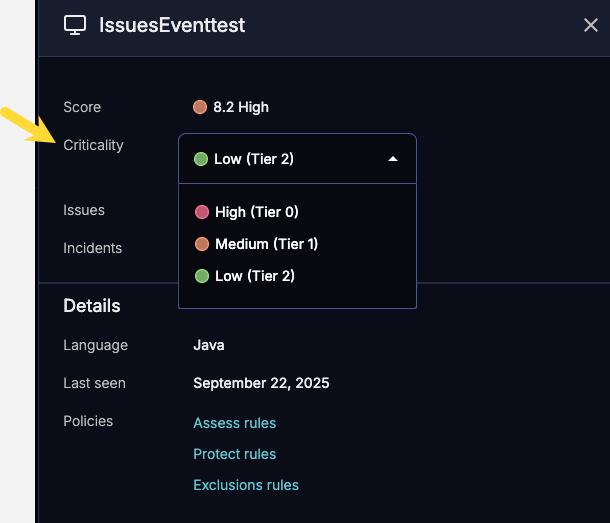
The available criticality tiers are:
High (Tier 0)
Medium (Tier 1)
Low (Tier 2)
Steps
From the left navigation, select Explorer.
Select an application, database or API entity.
In the details panel, select the Criticality dropdown and select a criticality tier.
The Contrast score and the Contrast posture score change based on your selection.