- Role-based access control

- User access groups
- Add user access groups
Add user access groups
Create user access groups to let a collection of users access projects, applications, and organization settings. The roles you assign to users in the group determine which capabilities they can access.
Before you begin
Add users, if necessary.
Determine whether you need to add custom roles or custom resource groups.
Steps
In the User access groups tab, select Add group.
In the Add user access group window, specify these settings:
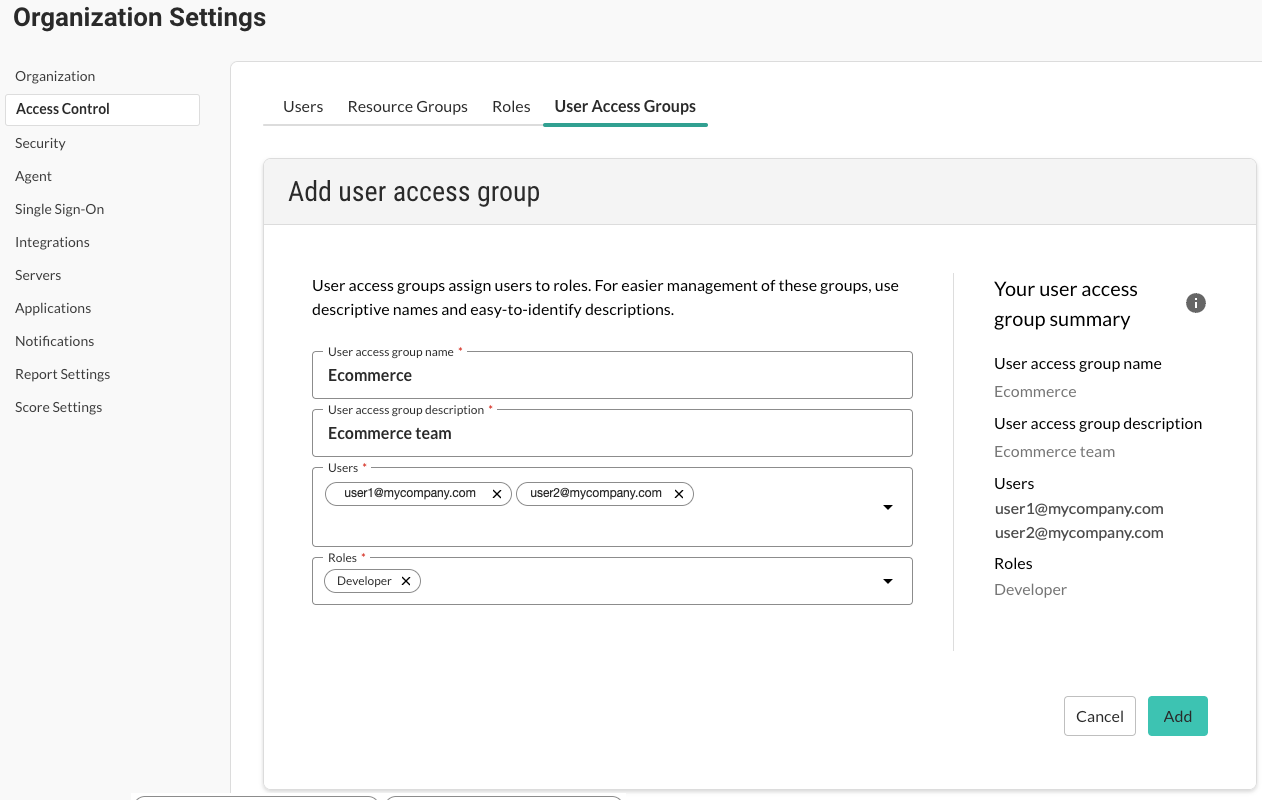
User access group name: Specify a name for the user group.
The name must be unique for the organization. Use up to 255 characters, including spaces and special characters.
User access group description: Specify a description of the group.
Consider using a description that clearly identifies the purpose of the group. Use up to 1024 characters, including spaces and special characters.
Users: Specify users for the group.
To display a list of users, select the triangle
 at the end of the box or start typing a name.
If you don't see specific users, go to the Users page under user menu > Organization settings and verify that they are Contrast organization users.
Roles: From the dropdown, select one or more roles to apply to all users in the group.
You can select built-in roles or custom roles.
Select Add.