Allocate licenses for organizations, applications, and servers
You can allocate licenses for Contrast Assess and Contrast Protect.
Important
If you purchase ADR licenses instead of Protect licenses, you only see the details for the ADR licenses. ADR licenses apply to all servers in all environments automatically. Explicit allocation is unnecessary.
View ADR license details describes the information available to you when you purchase ADR licenses.
Before you begin
If you are using organization users and groups, an Organization Administrator role is required.
If you are using role-based access control, Actions and permissions lists the actions you need.
If your organization has consumed all allocated Assess licenses, hosted customers are asked to contact Support.
For on-premises customers, the SuperAdmin can make more licenses available at a system level.
Steps
See an overview of license usage in an organization:
Under Licenses, view information about Assess and Protect or Assess and ADR licenses:
Available and used Assess (application) licenses, as well as how many applications are unlicensed.
Available and used Protect (server) licenses as well as how many servers are unlicensed.
If you are using more licenses than you purchased, the available licenses section of the license bar is replaced with the number of additional licenses in use.
ADR license contract and usage details. Contrast applies these licenses automatically to your servers. There are no settings to adjust.
(Optional) Under Licenses, automatically apply licenses to new applications or servers:
For Assess licenses, turn on Automatically apply licenses to new applications.

For Protect licenses, turn on Automatically apply licenses to new servers.
Note
This option applies only to customers who purchase Protect licenses. Customers who purchase ADR licenses do not see this option.
Select the server environments.
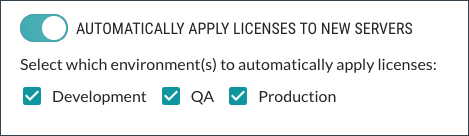
If you use a method external to the Contrast web interface for Protect settings (for example, an agent configuration file), Contrast considers that configuration to be the effective configuration. An effective configuration takes precedence over the automatic licensing setting in the Contrast web interface:
If an agent's effective configuration has Protect turned OFF and the automatic licensing setting is turned ON, Contrast ignores the setting in the Contrast web interface. It doesn't apply a license to the server automatically.
If an agent's effective configuration has Protect turned ON and the automatic licensing setting is turned OFF, Contrast ignores the setting in the Contrast web interface. It applies a license to the server automatically.
If an agent doesn't report an effective configuration, the automatic licensing setting in the Contrast web interface applies to all new servers.