Bring your own key: dedicated hosted instance
When you use a dedicated Contrast hosted (SaaS) environment, you can use the AWS Key Management Service (KMS) to create a customer-managed KMS key. You share that key with the Contrast AWS account. Contrast uses that key when creating your dedicated hosted (SaaS) environment.
Before you begin
Permissions to use the AWS KMS console.
From Contrast, ask for:
The Contrast AWS account ID
The primary and failover region for your dedicated SaaS environment
Steps
Follow the AWS instructions for creating the primary key and use these options for step 1:
Important! Ensure that your AWS console is in the same AWS region as your Contrast SaaS environment.
Key type: Select Symmetric
Key usage : Select Encrypt and Decrypt
Key material origin: Select KMS
Regionality: Select Multi-Region key
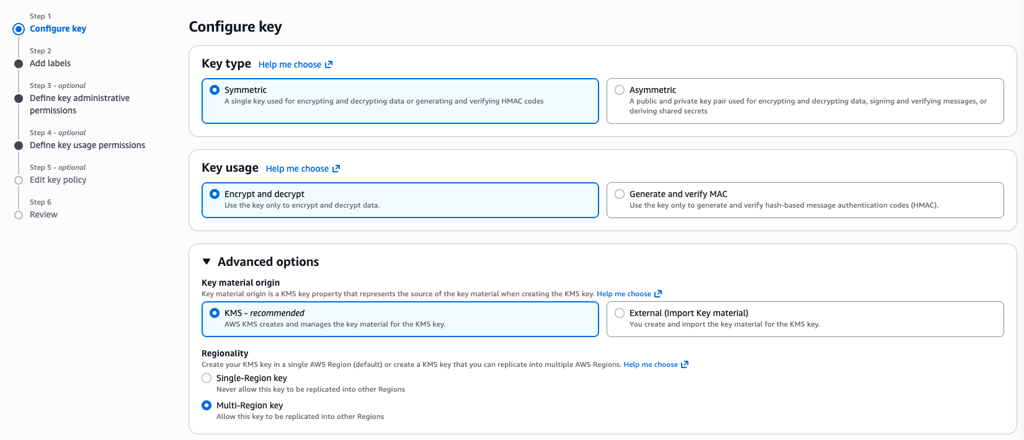
For step 2 in the key creation procedure, select the options you want.
These values have no effect on the Contrast environment.
For step 3 in the key creation process, select the options you want.
These values have no effect on the Contrast environment.
For step 4 in the key creation procedure, select Add another AWS account and provide the Contrast AWS account ID.

Step 5 in the key creation procedure is optional.
AWS will have already provided a key policy that allows account access if you entered the Contrast AWS account ID in step 4 of the key creation procedure.
Replicate the key to the Contrast failover region as described in the AWS documentation. This procedure is very similar to creating the key:
Step 1 - Select the Contrast failover region.
Steps 2 isn't relevant to the Contrast SaaS environment.
Step 3 isn't relevant to the Contrast SaaS environment.
Step 4 should already show the Contrast account ID listed. If not, add it.
Step 5 is optional.
Give the ARN (Amazon Resource Name) to Contrast.
The ARN looks similar to this value:
arn:aws:kms:us-east-2:12345678910:key/mrk-c4561245162e4385923342db2a99e480