View agent details
From the agent dashboard, you can view additional details about selected agents.
Before you begin
If using role-based access control, a role with the Organization edit action is required.
If using organization users and groups, the Organization RulesAdmin role is required.
Steps
Open the agent dashboard:
Northstar: From the left navigation, under Administration, select Agent management.
Contrast: From the header, select Administration and then, select Agent Management.
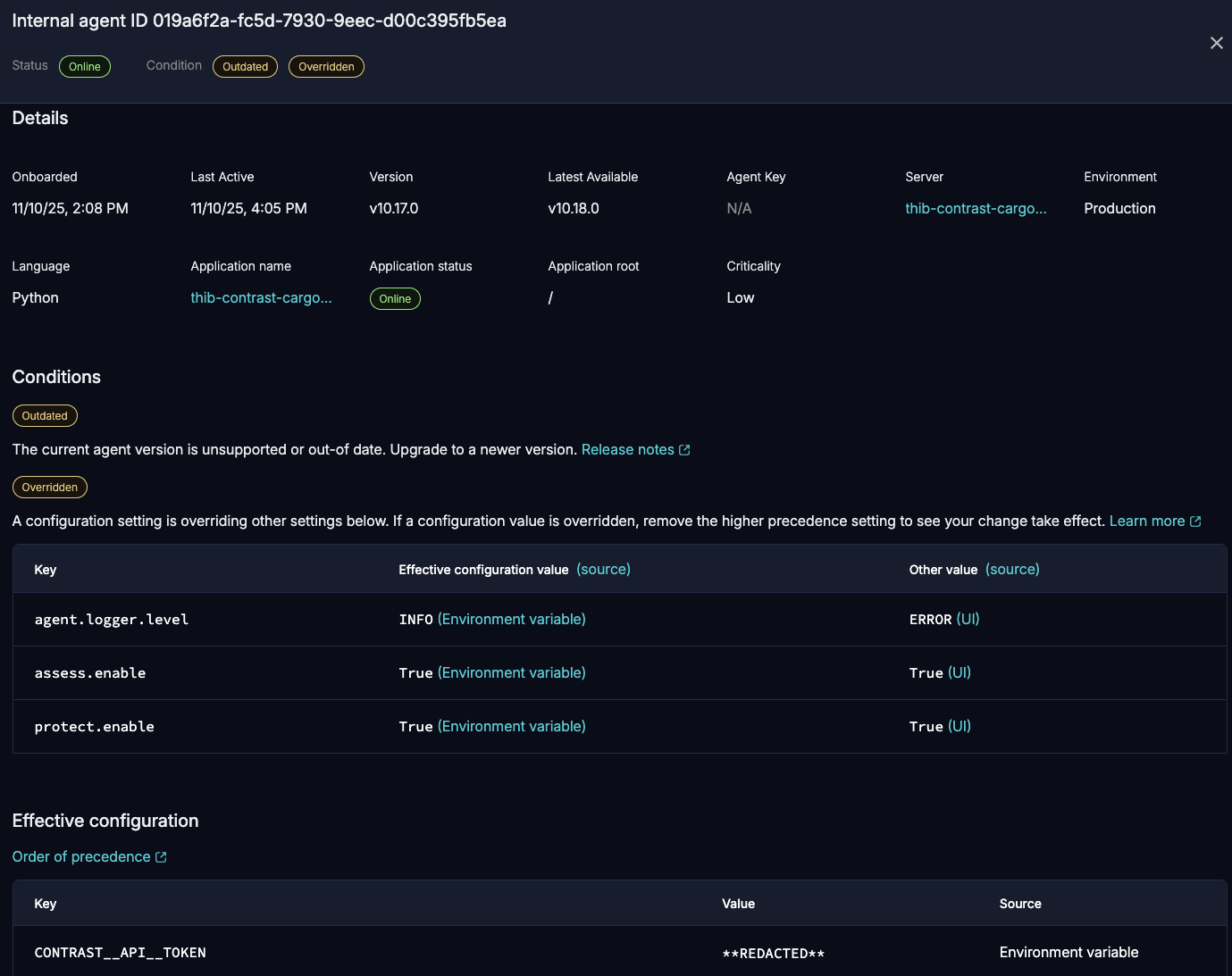
To view the details for a specific agent, select a row.
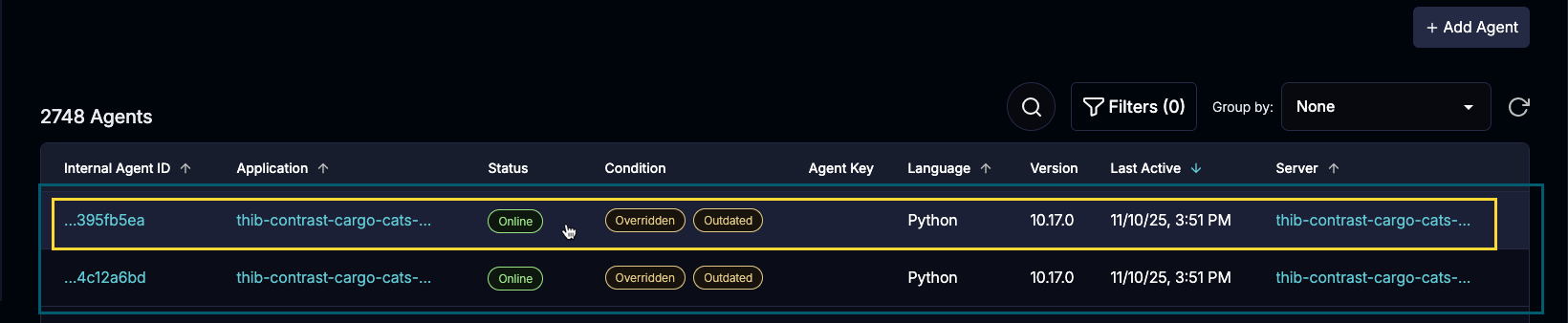
The details panel shows:
Details overview
Onboarded: The date when you deployed the agent.
Last active: The last time the agent sent data to Contrast.
Version: The agent version.
Latest available: The latest version of the agent that's supported.
Agent key: The authentication key associated with the agent.
Server: The server associated with the agent.
Select the link to view additional details.
Environment: The environment where the agent is running.
Language: The language that the agent uses.
Application name: The name of the application where the agent is running.'
Northstar: Select the link to view details in Explorer.
Contrast: Select the link to view details in the Applications list.
Application status: The status of the agent, Online or Terminated.
Application root: The root of the path where the agent is installed.
Criticality: The criticality level that lets you identify which incidents and issues involve critical entities in your organization.
Conditions: The current states of the agent. If
Overriddenis one of the conditions, this section shows:Key: The name of the agent setting that is overridden.
Effective configuration value: The value that is in effect and where it's configured.
Other value: The value that is overridden and where it's configured.
For example, if the source for the Effective configuration is
Environment variableand the source for Other value isUI, it means that the environment variable value takes precedence over the setting in the web interface.Effective configuration: All the settings that the agent is currently using. These details include:
Key: The name of the setting.
Value: The value that is in effect.
Source: The location where the value is configured.